Customized user interface
pdfMachine allows you to customize the look and feel of the software.
Theme
pdfMachine has a light and dark theme. You can change the theme in the settings.
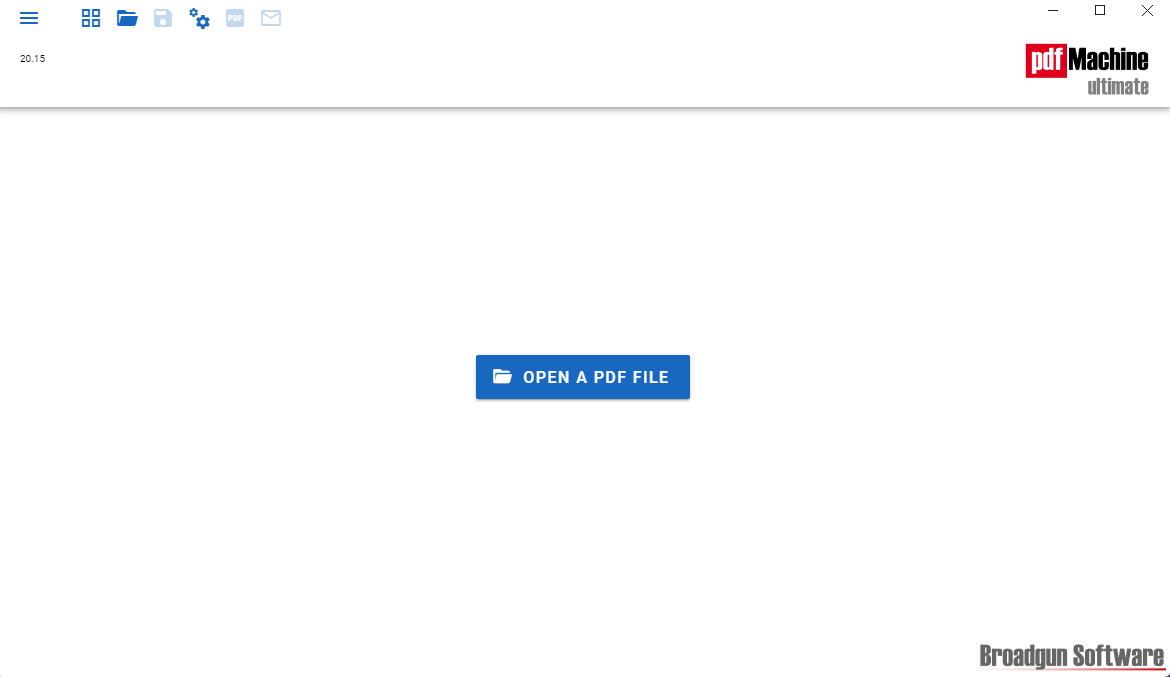 Light theme.
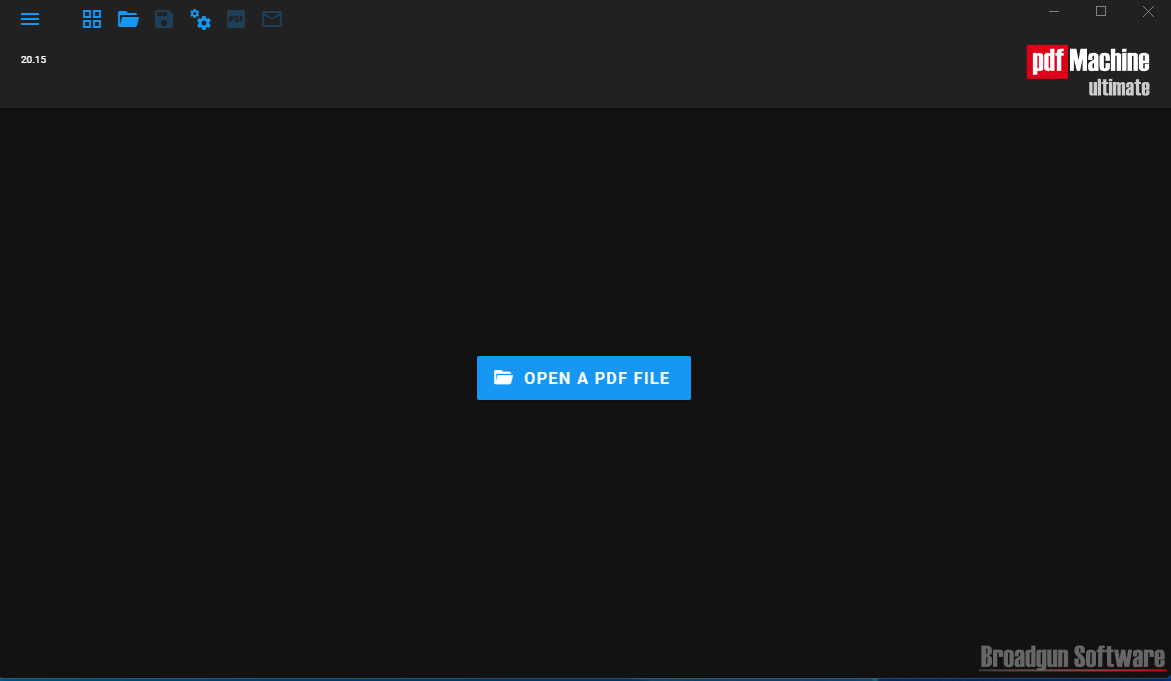 Dark theme.
Customized Toolbar
The pdfMachine toolbar appears at the top of the pdfMachine user interface. It consists of a left toolbar which is always shown and a right toolbar which is shown when a PDF is open in pdfMachine. If you don't see any toolbar then your window is too narrow, try expanding the window. If you can't expand the window you will see the standard 'hamburger' and 'kebab' menus. You will find the menu options in these.
You can customise the left and/or right toolbar to include your most used operations. This will provide fast and easy access to your favorite functionality.
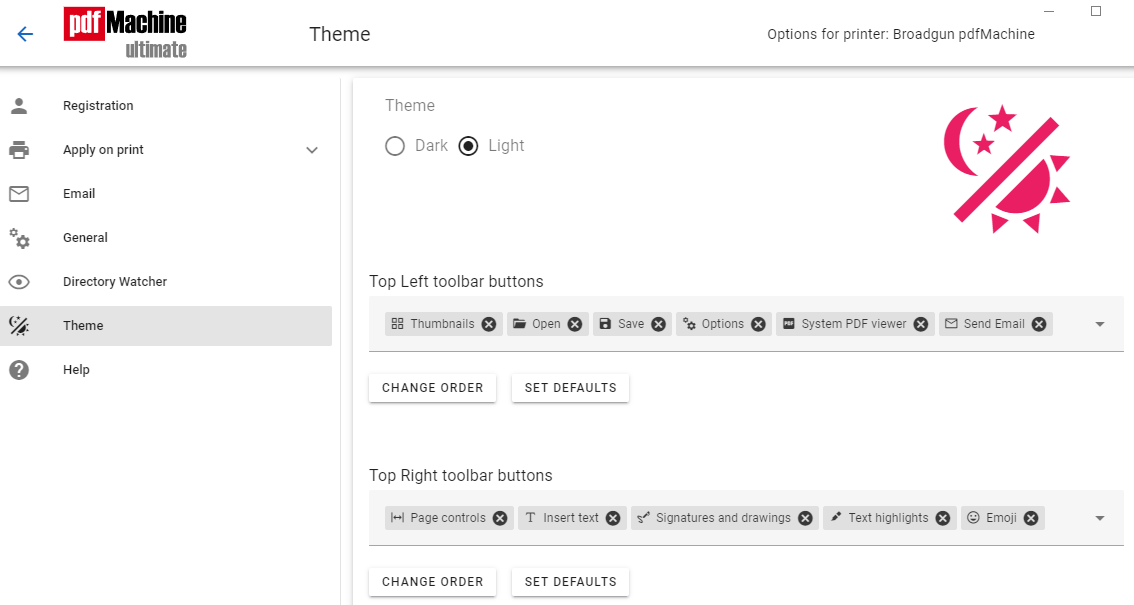
Use the search toolbar to quickly find the operation you wish to place on the toolbar.
Toolbar Customization Example
Add Send Email to the top left toolbar, as shown in the video.
Fonts for Text Annotation
You can change the available fonts that can be used in the text annotations. Use the Fonts button on the Theme tab of the pdfMachine options to get a list of the Windows fonts. Drag them left and right to add or remove them from your font list.
